We’ve introduced several improvements to the SoCreate Writer interface designed to make organizing and navigating your story smoother and more intuitive. Today, I will cover props, which are now simpler to create, locate, and manage. Preparing your story for SoCreate Publishing using props is more seamless than ever.
💡Helpful Hint: If an object appears multiple times in your story, it’s best to create it as a prop and tag it wherever it’s used. This keeps it the same across your story. Even minor objects should be created as a prop and tagged if they appear more than once, helping to keep the story as visually consistent as possible for the publishing process.
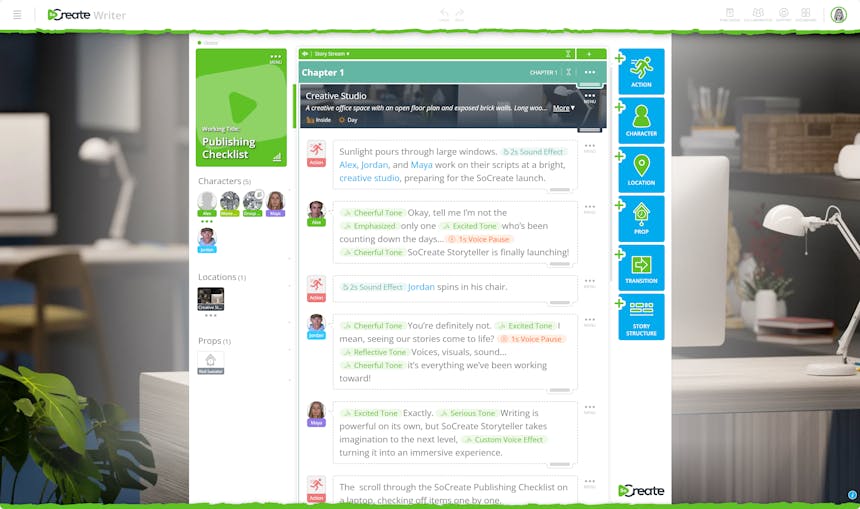
You can now create props directly from the Tools sidebar on the right side of your story.
Select Prop, and a panel will slide out where you can enter the prop’s name and description.
After it’s created, the prop will automatically appear in the Story Toolbar on the left.
Within the Story Toolbar, props are now shown alongside characters and locations. If you have six or fewer assets in each category, props will appear beneath your locations.
Once a category contains seven or more assets, separate tabs for Characters, Locations, and Props will appear. Click an icon to switch between tabs.
Each tab includes its own search bar for faster browsing.
Unlike characters and locations, props aren’t inserted directly from the Story Toolbar. Instead, you’ll tag them in your story using an @ mention.
To tag a prop within stream items, press Shift + @ to open up the Quick Add menu. Begin typing the first few letters of the prop’s name to filter the list, then arrow down or click the correct prop, and press Enter to insert it.
These enhancements make managing story assets easier and help ensure your project is fully prepared for SoCreate Publishing. Take a look at the new interface now!