The bigger your story gets, the harder it can be to keep track of every character, line of dialogue, sound, and story detail.
That’s why we built a new set of tools in SoCreate to make finding and changing things throughout your story faster and easier.
With Find & Replace, you can search your entire story, jump directly between results, work with @mentions, update multiple instances at once, and even search through your story’s sound effects and music.
We also introduced a new context-aware right-click menu, giving you quick access to tools based on exactly what you’re working with.
Here’s what you can do.
Search Your Entire Story
Need to track down a specific line of dialogue? Looking for every appearance of a character? Want to find a particular sound effect?
You can search for all kinds of content throughout your story, including:
-> Character names
-> Dialogue
-> Action
-> Locations
-> Props
-> Sound effects
-> Voice effects
-> Background sounds
-> Music
There are several ways to start a search.
Use Ctrl + F to bring up the search bar at the top of your Story Stream, or click the search icon in the upper-left corner.


You can also right-click an item in your story and select Find & Replace. When you launch the tool this way, the item you selected is automatically added to your search.
Once your results appear, use the navigation arrows to move from one occurrence to the next. Instead of manually scrolling through your story, you can jump directly to the places where your search term appears.
Search With Case Sensitivity
Sometimes you want to find every variation of a word. Other times, you need to locate only an exact match.
Find & Replace now gives you control over that with case sensitivity.
With case sensitivity turned off, searching for bob can find:
-> Bob
-> BOB
-> bob
Turn case sensitivity on, and SoCreate will only return the exact version you entered.
This gives you more control when searching and replacing content throughout your story.
A Right-Click Menu That Adapts to Your Story
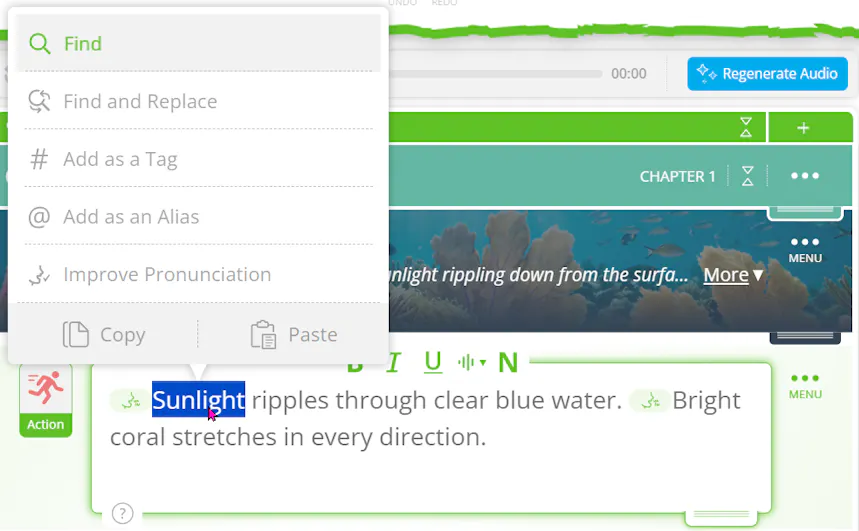
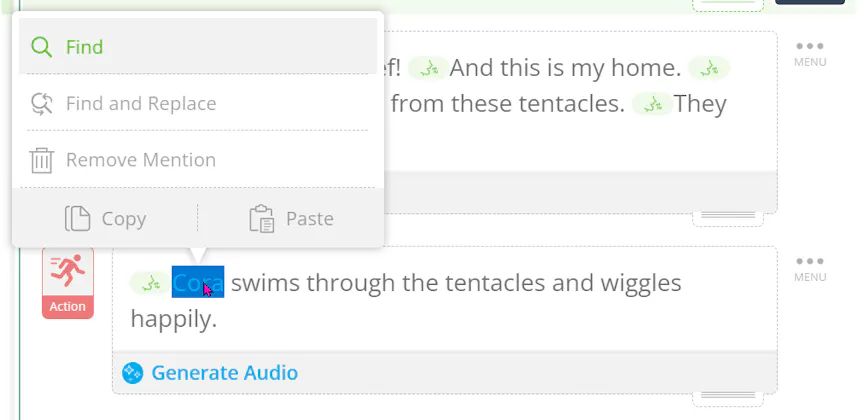
The new right-click menu is context aware, which means the tools available to you can change depending on what you select.
Right-click an @mention for a character, location, or prop, and SoCreate can give you options specific to that asset. Right-click regular text, and you’ll see tools that apply to what you selected.
Normal text:
@mention:
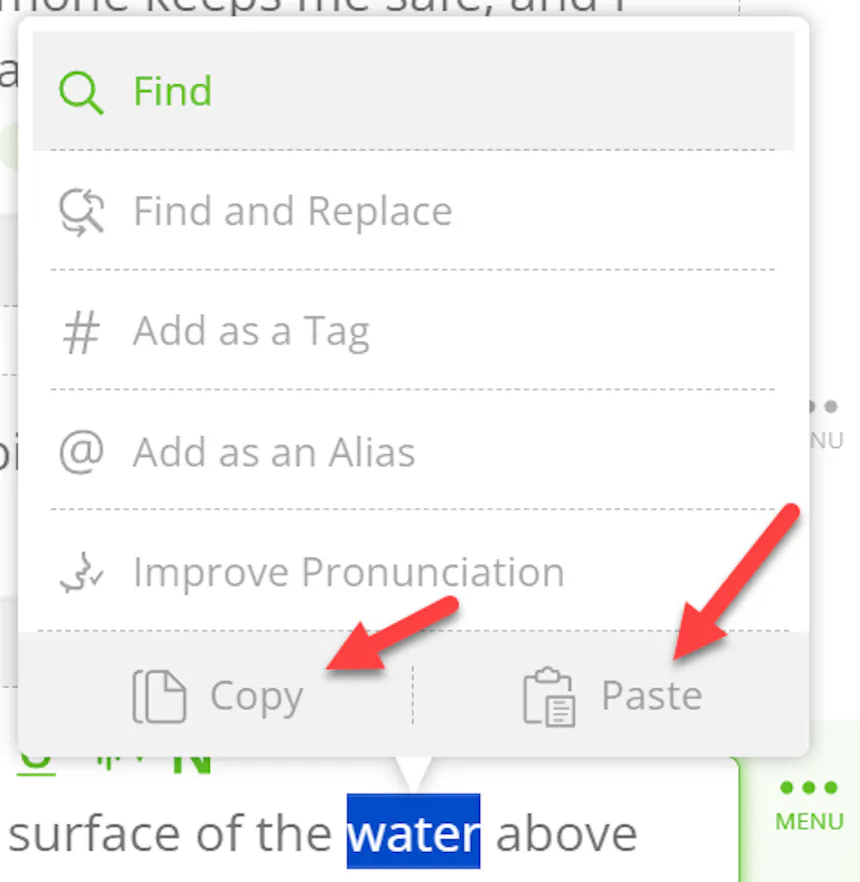
The menu gives you quick access to tools including:
-> Find & Replace
-> Add as Alias
-> Add as Tag
-> Improve Pronunciation
-> Copy and Paste
Instead of searching through menus to find the tool you need, the right-click menu puts relevant actions right where you’re working.
Give Characters More Than One Name
Characters don't always go by their full names.
A character might have a nickname, a shortened name, or another name that people use throughout the story. With Add as Alias, you can connect those variations to the same character.
Right-click a character name and select Add as Alias to create another name for that character.
Once the alias exists, you can use it with that character and in Find & Replace.
For example, if your character is Cora but also goes by CoCo, you can create CoCo as an alias and then use that alias when making changes to your story.
Use Tags for Temporary Story Information
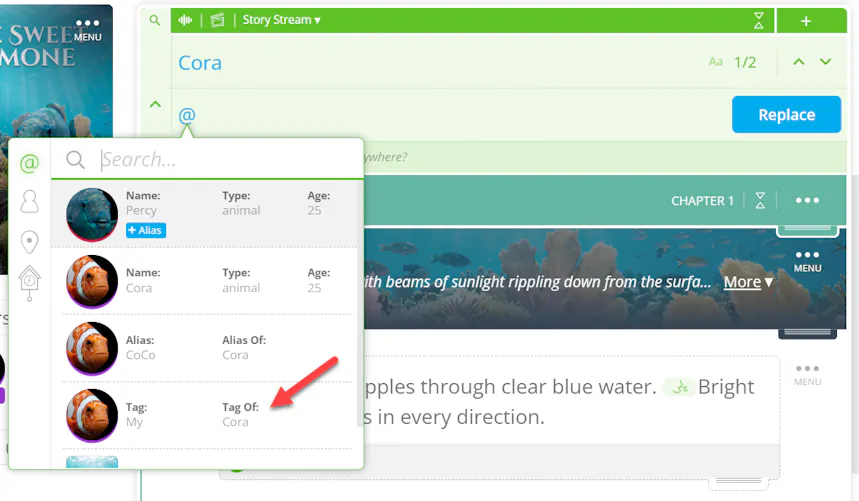
We also introduced Tags, which give you a way to connect temporary or “throwaway” terms to story assets.
For example, you might have a character referred to as “He” in your story. You can tag that term and connect it to a specific character, location, or prop.
Tags are added to the character’s profile, but they do not appear as @mentions in the Story Stream. This lets you add useful context without changing how the story itself reads.
Tags can also be used with Find & Replace. You can search for a tag or use a tag as the replacement.
You can add or remove tags as your story develops, making them useful for information that may change as you continue working.
To find a tag later, open the character’s Character Details to see the tags associated with that character.
Find and Replace @Mentions
Find & Replace isn't limited to plain text. You can also search for and replace @mentions.
This opens up some powerful ways to make changes to your characters while maintaining their connections within your story.
For example, you can search for @Cora and replace that mention with Cora’s alias, @CoCo.
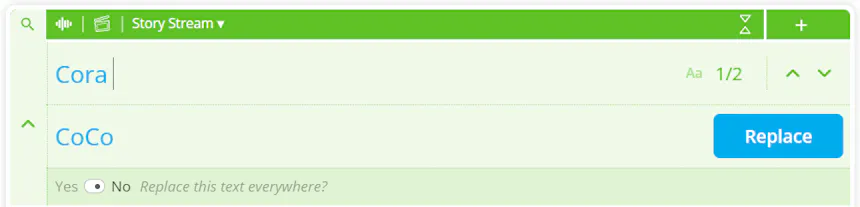
You can also replace one character with an entirely different character. For example, you could replace @Cora with @Todd. You can also use tags as replacements or replace a term with something completely new.
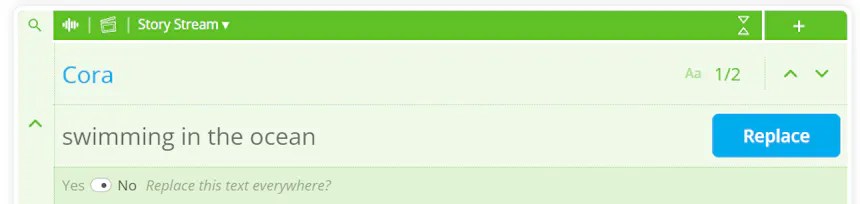
If you're renaming a character, swapping one character for another, or making a larger story-wide change, Find & Replace gives you a faster way to make those updates.
Make Larger Changes With More Control
When you're making changes across an entire story, you want to know exactly what will happen before you apply them.
SoCreate helps you stay in control.
If a particular replacement isn't allowed, the option will appear grayed out, and SoCreate will explain why.
When you choose Replace All, SoCreate only makes the replacements that are allowed.
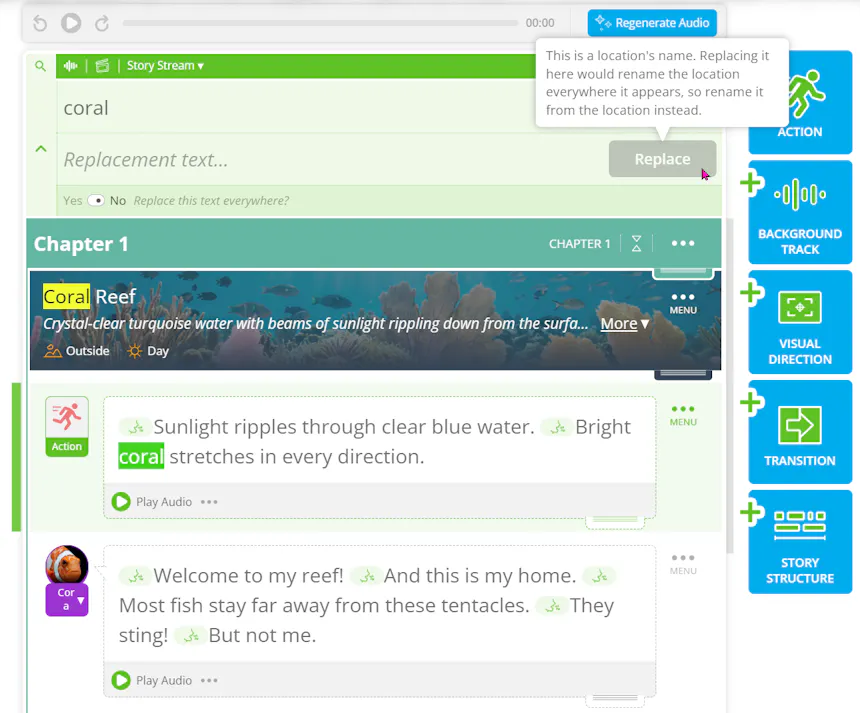
That means you can make broad changes without worrying about unintentionally modifying something that shouldn't be changed.
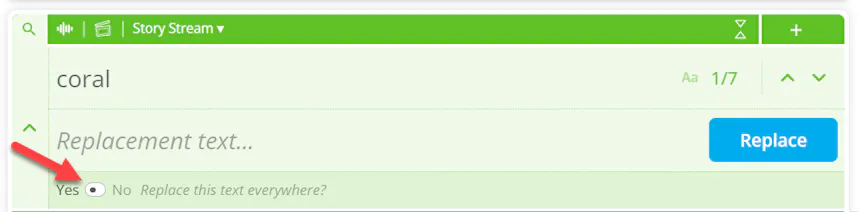
Locations and Props Work a Little Differently
Locations and props don't need to be updated through Find & Replace.
If you rename a location or prop, SoCreate automatically updates that name everywhere it appears in your story.
That means you don't have to hunt through your story and change every occurrence manually.
Get the Pronunciation Right
A word can look right on the page and still sound wrong when your story is read aloud.
The Improve Pronunciation tool lets you adjust how a word or name is spoken.
Right-click the word or name, select Improve Pronunciation, and make the adjustment you need.
For example, if your character is named Siobhan, you can adjust the pronunciation so it sounds the way you intended.
The right-click menu also includes Copy and Paste, making it easier to move or duplicate content while you're working.
More Control, Right Where You Need It
Find & Replace and the new right-click menu are designed to make editing a large story feel much more manageable.
You can search for a single word, jump through every result, find a sound effect, work with character @mentions, create aliases, organize temporary information with tags, adjust pronunciations, or make story-wide changes without manually searching through every scene.
Find what you need. Make the changes you want. Keep your story moving.
Try the new Find & Replace and right-click tools in SoCreate and see what you can do!