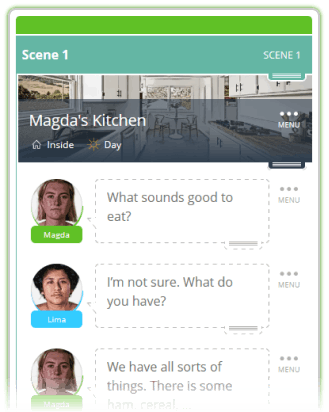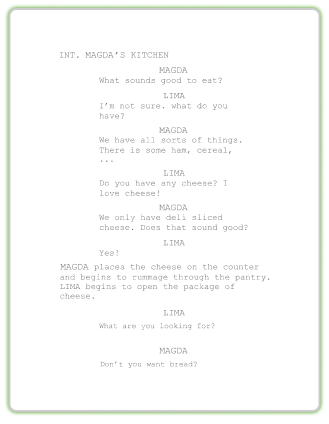
With one click
Export a perfectly formatted traditional script.
If you've ever wished you could tell SoCreate exactly how you envision a scene playing out, your wait is over.
Visual Direction has officially arrived in SoCreate Writer, giving storytellers a new level of creative control over how their stories are presented in SoCreate Storyteller. As one of our most anticipated features, Visual Direction allows you to go beyond writing the story, you can now direct how it's experienced!
If you're picturing a slow dolly shot, a dramatic fade to black, or a perfectly framed close-up, Visual Direction helps communicate your creative intent so your story feels even closer to the one you've imagined.
Adding Visual Direction to your story only takes a few clicks!
First, open your project from the SoCreate Dashboard in SoCreate Writer.
Next, click the action, dialogue, or text-on-screen item where you'd like to add Visual Direction. Once it's selected, the green Focus Indicator will move to that stream item.
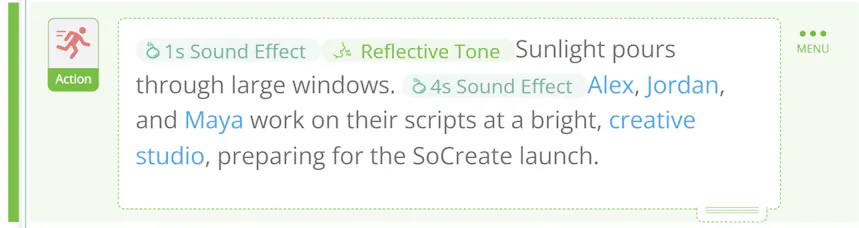
From there, select the Visual Direction button in the tools toolbar on the right side of the screen. This opens the Visual Direction menu, where you can customize exactly how that moment should be presented.
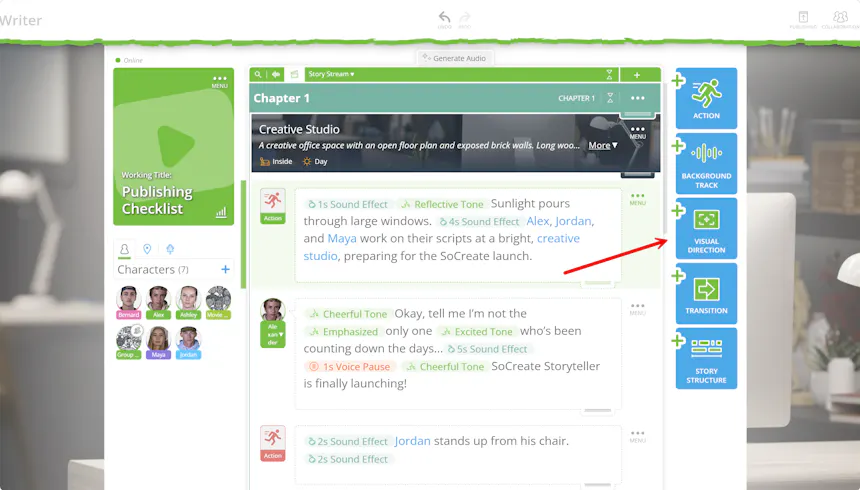
Each Visual Direction setting contributes to a more cinematic storytelling experience. The more creative guidance you provide, the more accurately SoCreate Storyteller can bring your vision to life.
Choose how each new image enters the screen.
Browse all available transition options using the drop-down menu.
Hover over any transition to watch an animated preview before making your selection.
Dissolve:
Fade In From Black:
Iris Out:
Decide how the camera behaves while your moment plays.
Choose a movement from the menu, then adjust its speed to match the mood of your scene. Medium is selected by default, but you can easily customize it.
Boom Down:
Dolly Out:
Tilt Down:
Fine-tune the composition of every shot by selecting camera framing options and applying visual filters that enhance the atmosphere of your story.
Extreme Close Up:

Long Shot:
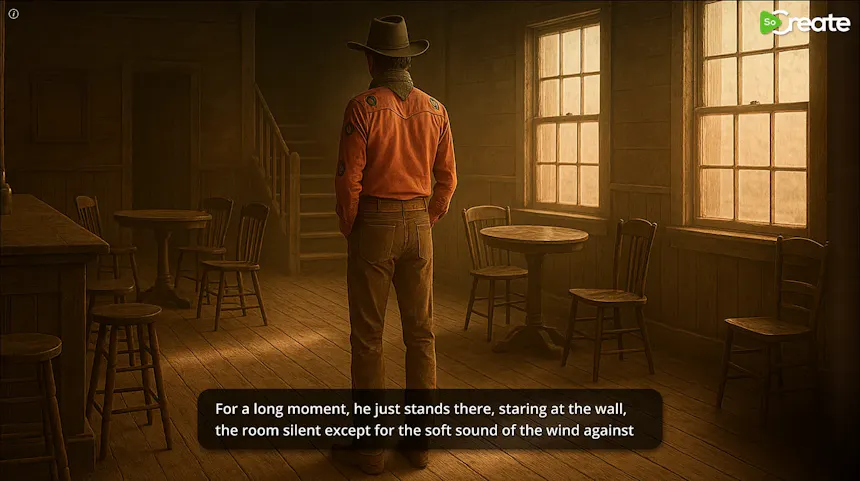
Over the Shoulder:
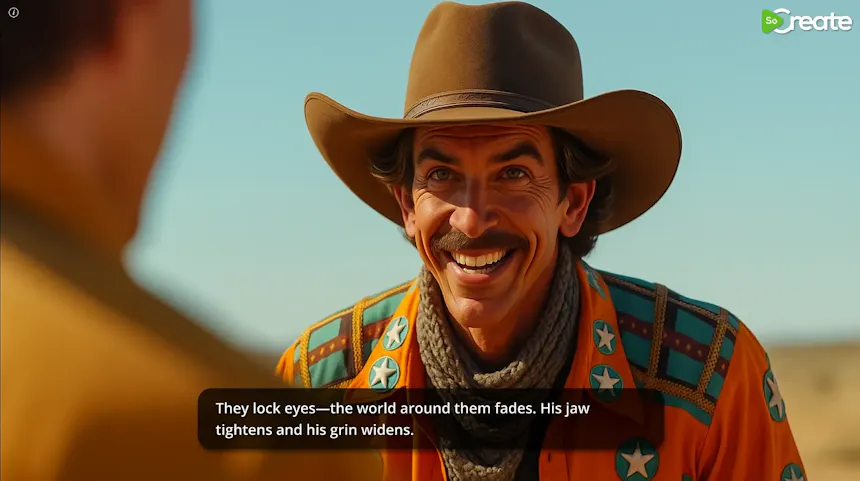
Want even more control? Add custom cinematic notes to explain exactly how you want the shot to look.
You can:
Write a detailed description.
Upload one or more reference images.
Combine written direction with images.
Tag characters, locations, and props from your story to provide additional context.
These details help SoCreate Storyteller better understand the visual style you're aiming to achieve.
Finish each shot with the transition that best fits your story.
Fade Out to Black:
Fade Out to White:
After clicking Add, you'll notice colored bars appear on the Visual Direction item within your Story Stream, making it easy to identify which transition color you've selected.
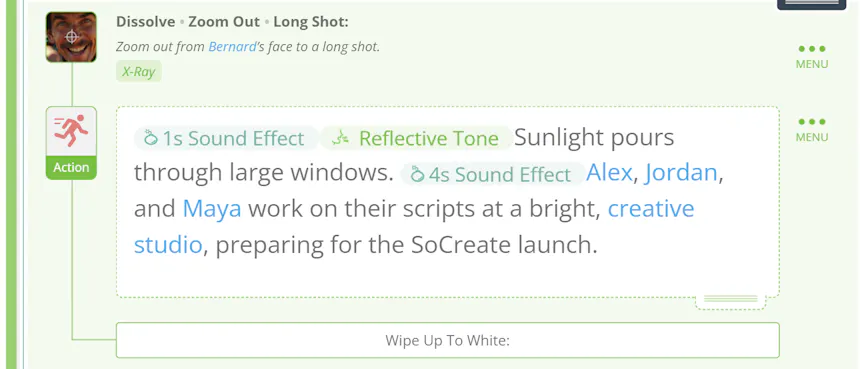
If you'd like a cleaner workspace, you can quickly show or hide Visual Direction items.
At the top of the Story Stream, next to the voice waveform icon, you'll find the Director Mode toggle. Turn it on to display your visual direction throughout the story or off to temporarily hide it while you write.
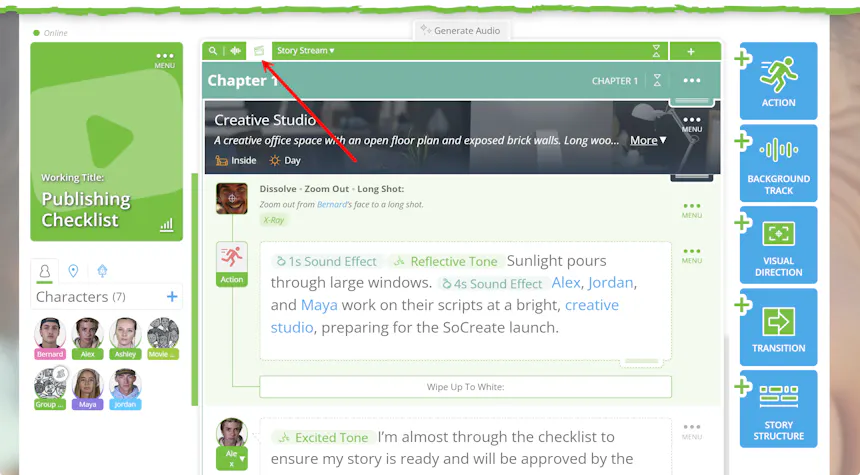
Creative ideas change, and your Visual Direction can too.
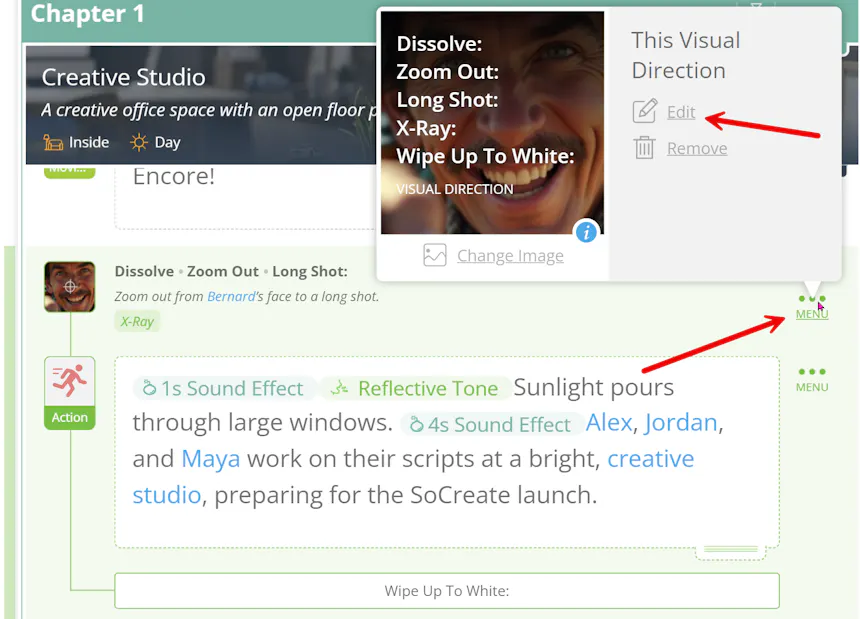
To edit an existing Visual Direction item, click the three-dot menu on the corresponding stream item and choose Edit.
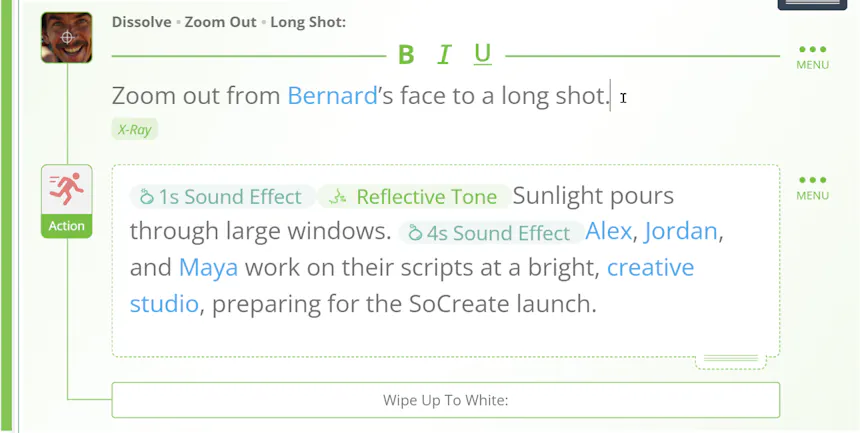
To edit the shot description, simply click directly into the description and make your changes right there in the Story Stream.
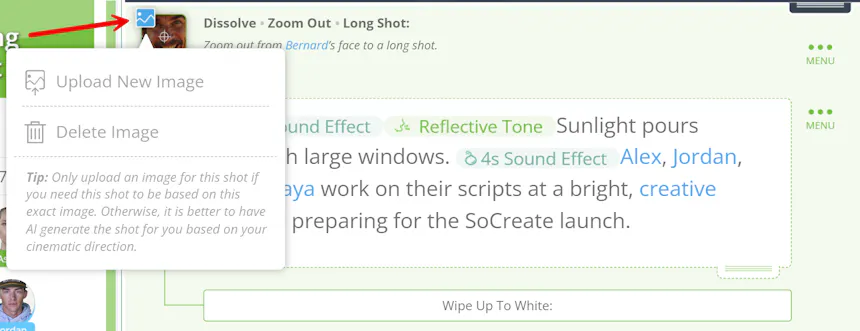
You can also add, replace, or remove reference images directly from the Story Stream, making it easy to refine your visual ideas as your story evolves.
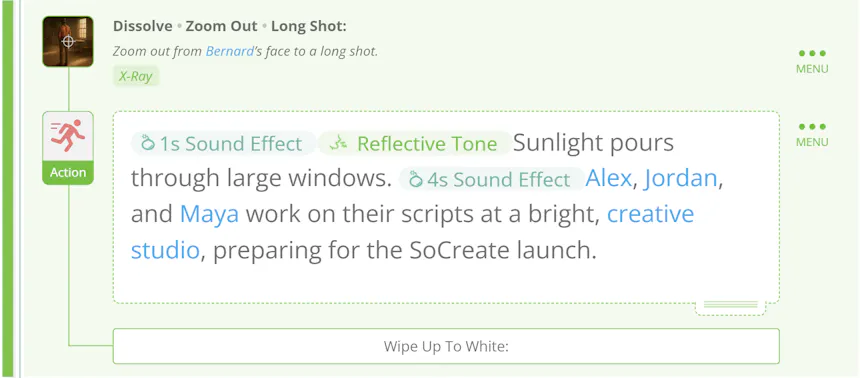
Storytelling isn't just about what happens, it's about how your audience experiences every moment.
Visual Direction gives you the freedom to shape camera movement, transitions, framing, filters, and cinematic notes without leaving your writing workflow. With more creative control than ever before, you can guide how your story comes to life in SoCreate Storyteller and create an experience that closely matches your vision.
We can't wait to see how you use Visual Direction to create more cinematic, immersive stories. Sign in to SoCreate now to get started!
Happy writing and happy directing!
Export a perfectly formatted traditional script.