Music has a powerful way of shaping a story. The right track can build tension, create excitement, add emotion, or completely change the feeling of a moment.
With SoCreate, you can now add custom music descriptions to your stories alongside background sounds and voice effects. Simply describe the kind of music you want, and SoCreate Storyteller can bring it into your audio-visual story.
If you're looking for an upbeat track to energize a scene or something more emotional to underscore an important moment, music gives you another way to guide your audience through your story.
How to Add Music to Your Story
Adding music to your story only takes a few steps.
- Click the sound button at the top of the Story Stream or the tools toolbar on the right side to reveal a sound icon on each story item.
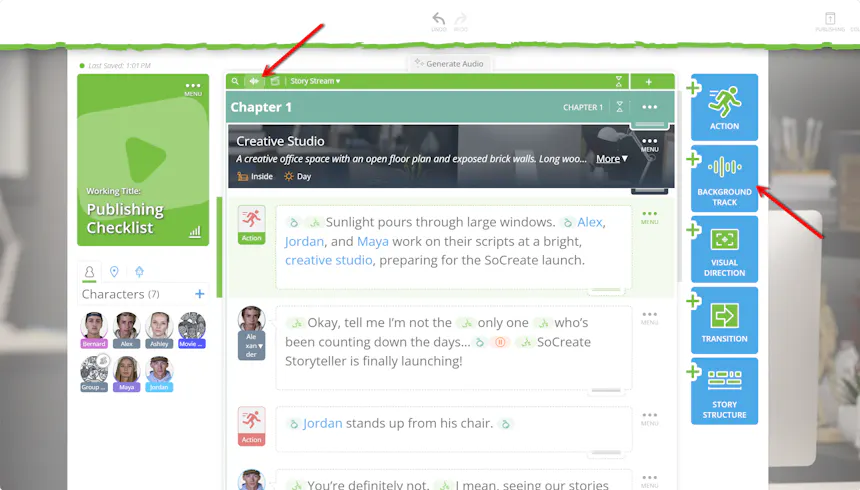
- Select the music icon on the story item where you want your music to start.
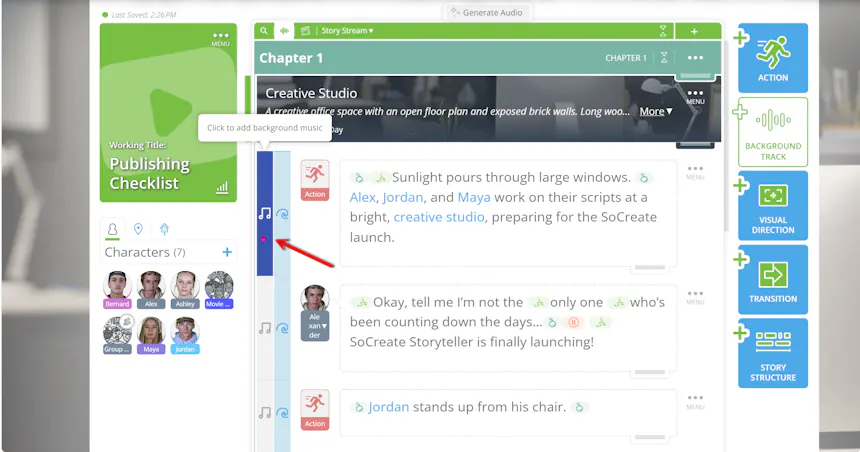
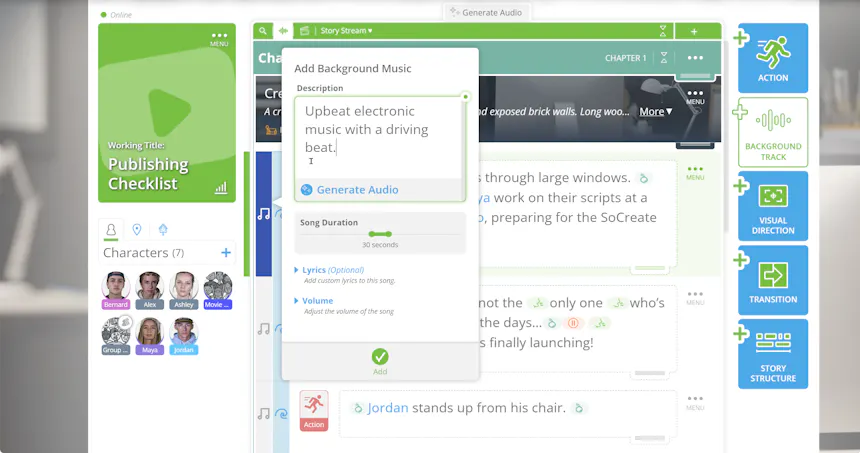
- Write a description of the music you want to hear.
For example: “Upbeat electronic music with a driving beat.”
You can use your description to communicate the style, mood, energy, or overall feel you're looking for.
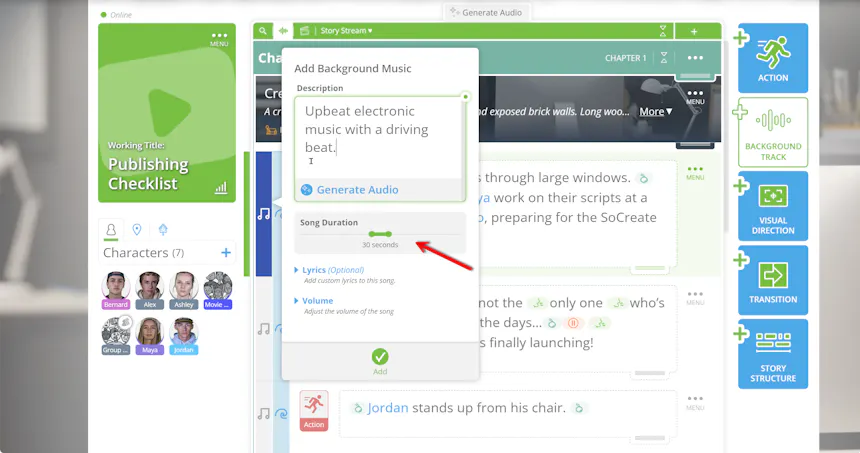
- Set the music duration
Choose how long you'd like the music to play. Music can be set to play for anywhere from 10 seconds to five minutes.
- Customize Your Music
You also have a couple of optional controls to further shape your music.
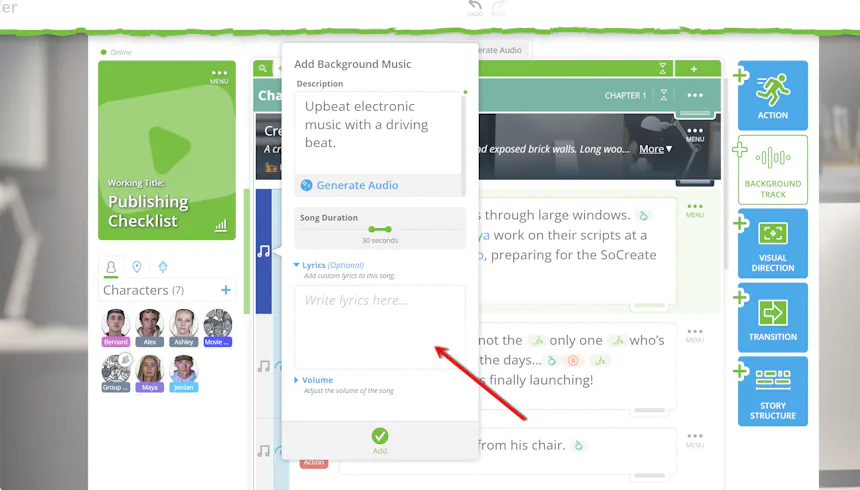
Add lyrics: Click the blue button to open a text box where you can enter custom lyrics.
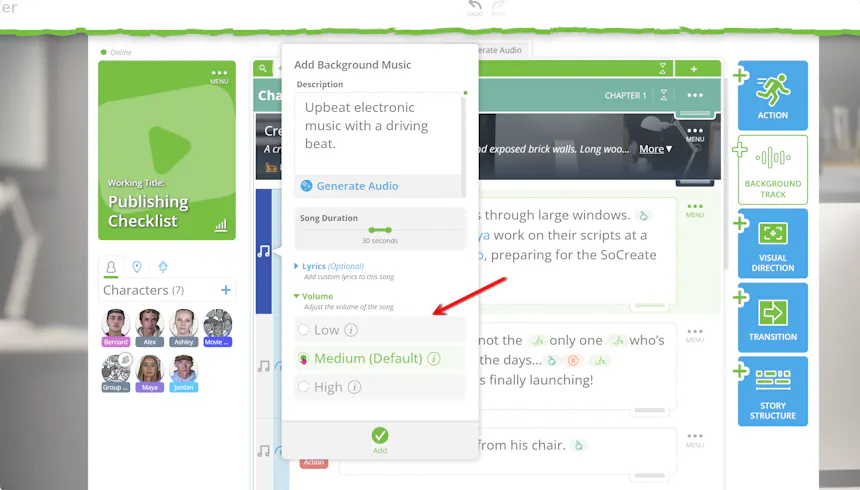
Adjust the volume: Use the blue button to choose between three volume levels: low, medium, or high. Medium is selected by default.
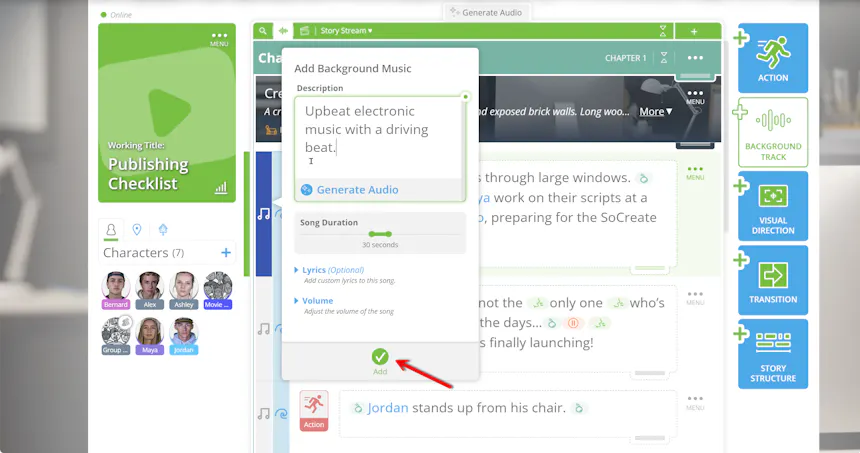
- Once your music is configured, click Add to save it.
Apply Music Across Multiple Story Items
Music doesn't have to be limited to a single story item. You can extend it across multiple moments in your story when you want the same track to continue playing.
To apply your music across multiple story items:
- Click the + sign on the left to select additional items.
- To quickly select everything between two story items, hold Shift while clicking the + sign. Use the – sign to deselect any items you don't want included.
- When your selection is complete, click Apply at the bottom of the screen.
This makes it easy to have a piece of music continue throughout a longer scene or sequence without adding it separately to every story item.
Edit Your Music Anytime
Your story may change as you continue writing, and your music can change with it.
To make adjustments to music you've already added, click the purple-highlighted music icon. Then open the three-dot menu to edit the description, change the length, or delete the music entirely.
This gives you the flexibility to experiment with different musical choices until the soundtrack fits your story just right.
Give Your Story Its Own Soundtrack
Music can do more than simply fill the silence. It can help establish a moment's energy, reinforce an emotion, build anticipation, and make important moments feel even more impactful.
With custom music in SoCreate Storyteller, you can shape the soundtrack of your story right alongside the writing. Combine music with background sounds and voice effects to create a more complete audio-visual experience that feels uniquely yours.
Open your story in SoCreate and start layering in music today!