
With one click
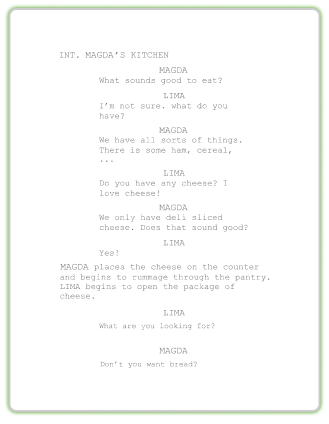
Export a perfectly formatted traditional script.
Sometimes, a few words on the screen can make a big difference in how an audience experiences a story. From introducing a new chapter to revealing an important detail, SoCreate’s Text on Screen feature gives you more ways to communicate with your audience through visuals!
You can add custom text, adjust its appearance, and choose a background that fits the moment. If you're creating a time jump, introducing a new chapter, or wrapping up your story, you can make each text card your own.
Not sure where to start? Here are some ideas for incorporating on-screen text into your next story.
Use phrases like “The Next Morning,” “Five Years Ago,” or “30 Minutes Earlier” to help your audience follow the timeline.
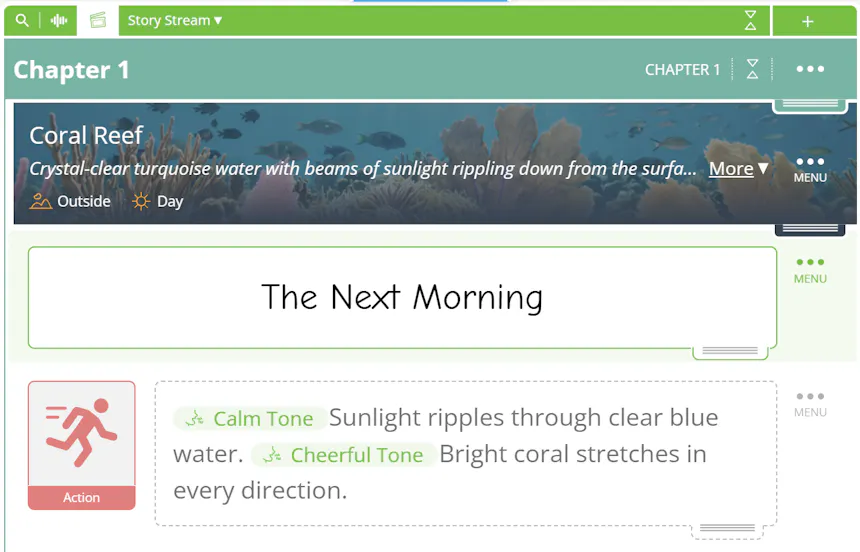
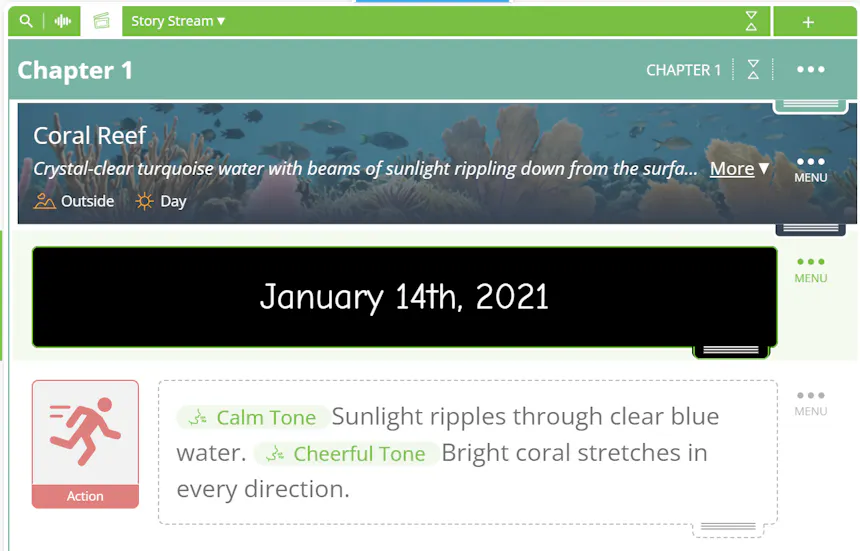
Display your text on a black or white background, a previous or next image, or a custom image you describe or upload to signal a new part of your story.
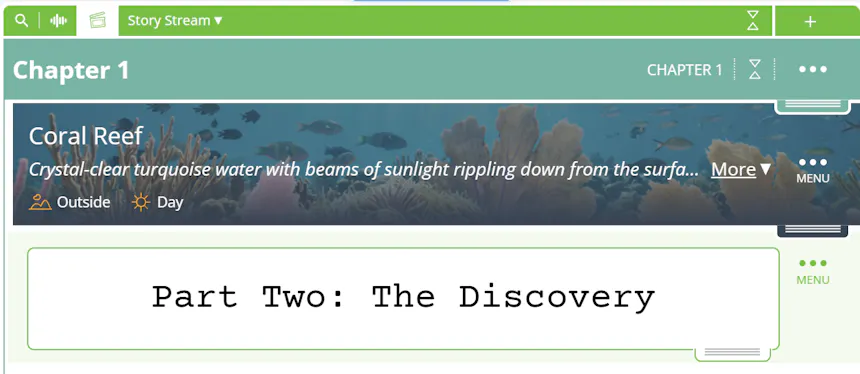
Display a city, location, or date to help your audience understand where and when a chapter takes place.
Share information that doesn't need to be spoken aloud, such as a headline, a deadline, or a written message.
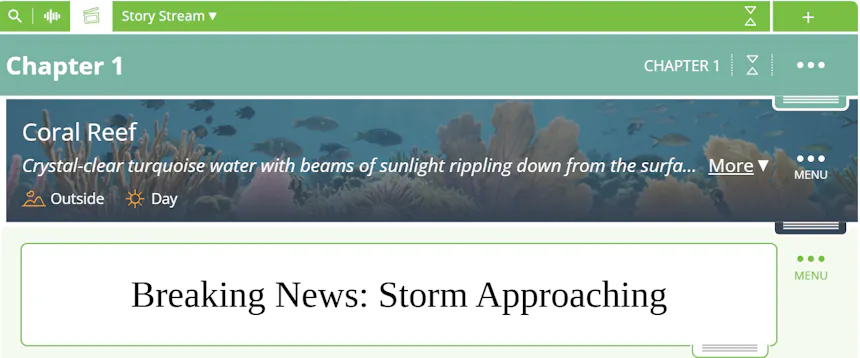
Put a warning, secret, or surprising statement on screen to build anticipation.
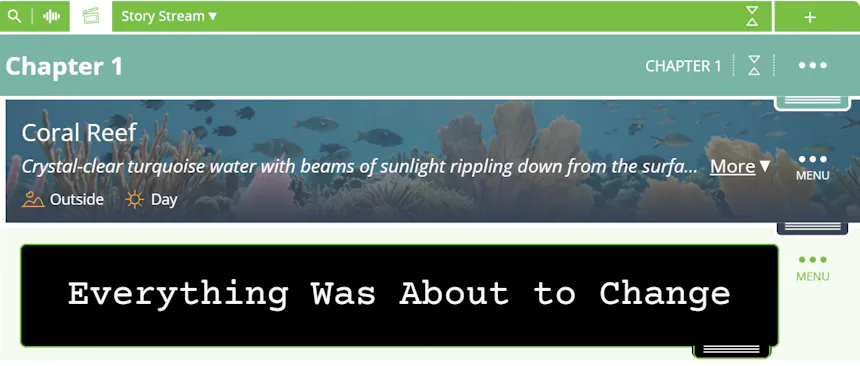
Start with a title or finish with a final message, such as “The End” or “To Be Continued.”
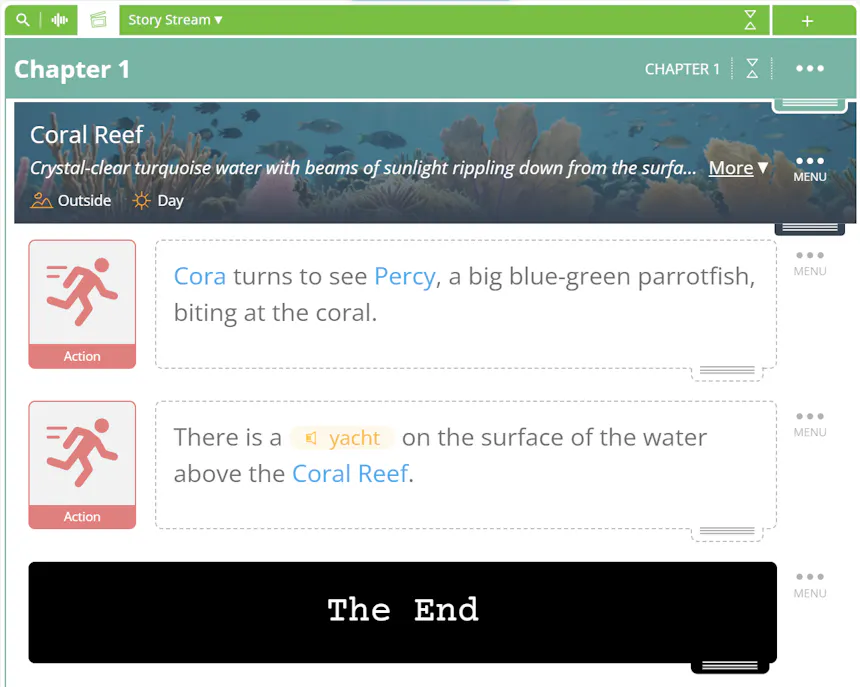
Combine your text with a particular font and background image to create a feeling that matches the tone of your story.
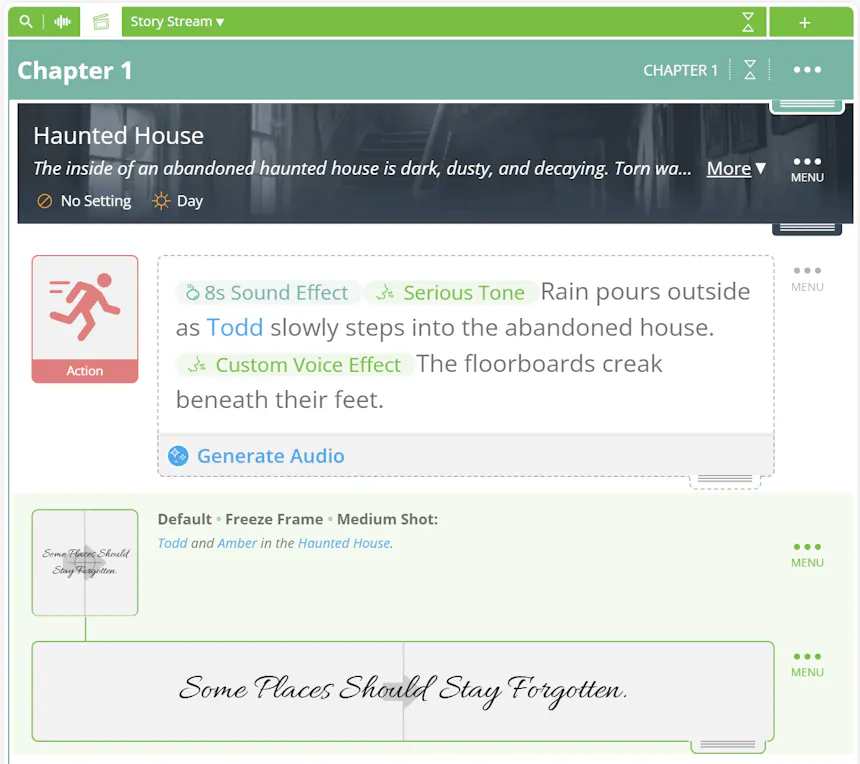
Use text alongside imagery to provide context, emphasize a moment, or make your storytelling more dynamic.
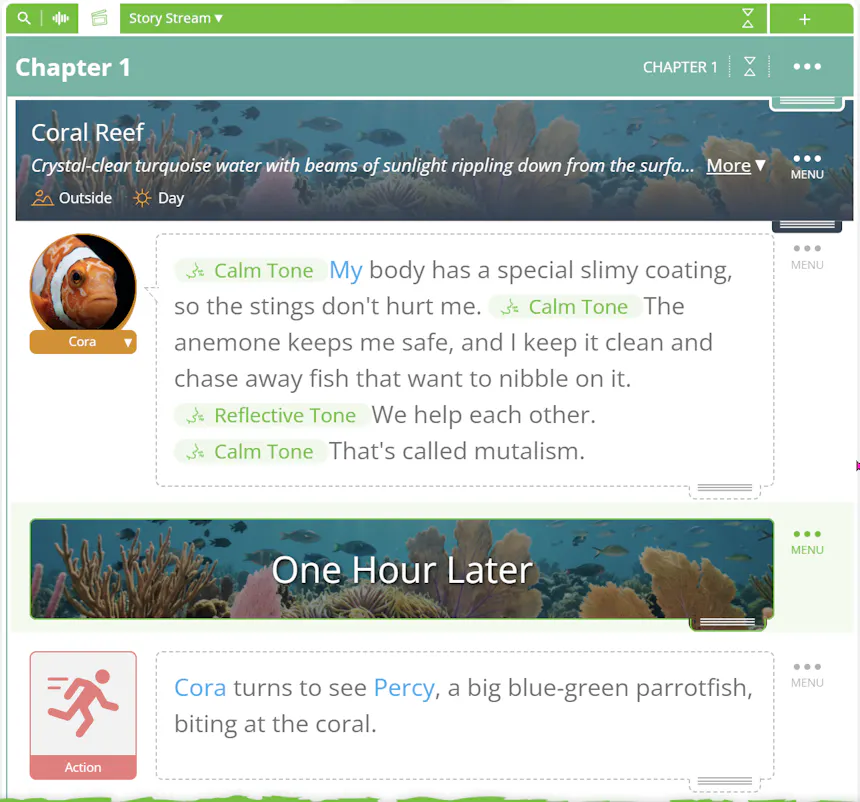
Adding text to your story takes just a few steps.
1. Open the Tools toolbar and click Transition.
2. Select Text on Screen.
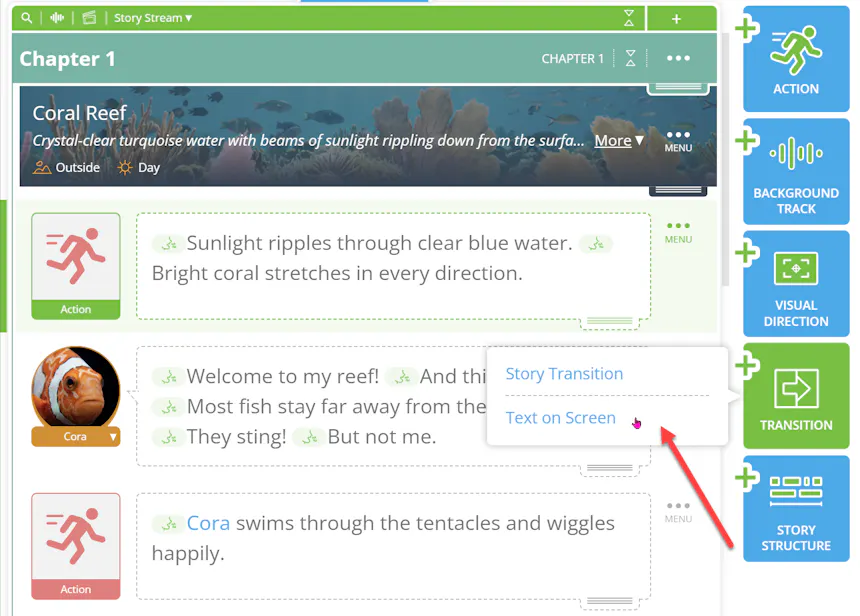
3. Enter the words you want to display.
4. Customize the appearance using the available settings.
5. Click Add to insert the text into your Story Stream.
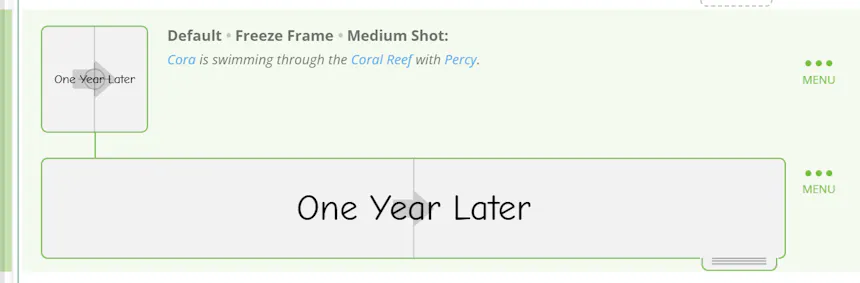
Your new text card will appear in your Story Stream, where it becomes part of your story.
You have several options for adjusting the appearance of your text card to match your creative vision.
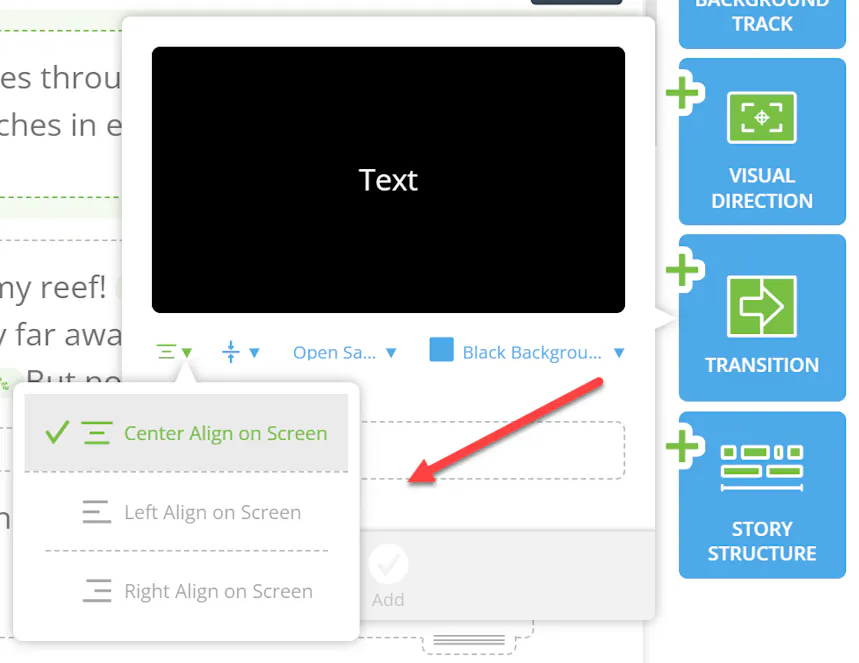
Choose your text alignment. Position your words along the left side, center, or right side of the screen.
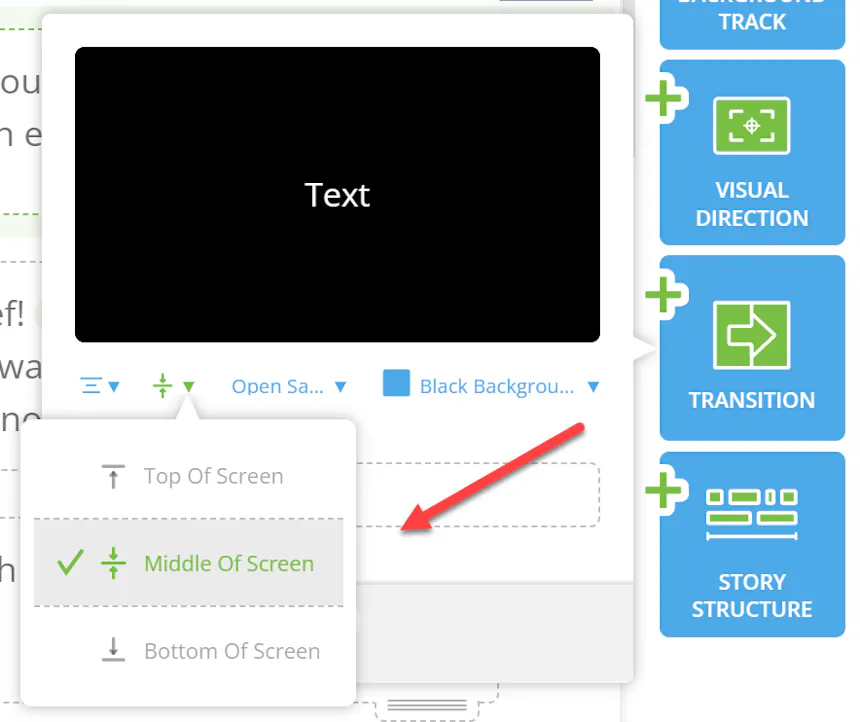
Adjust the placement. Decide whether your text should appear at the top, middle, or bottom of the screen.
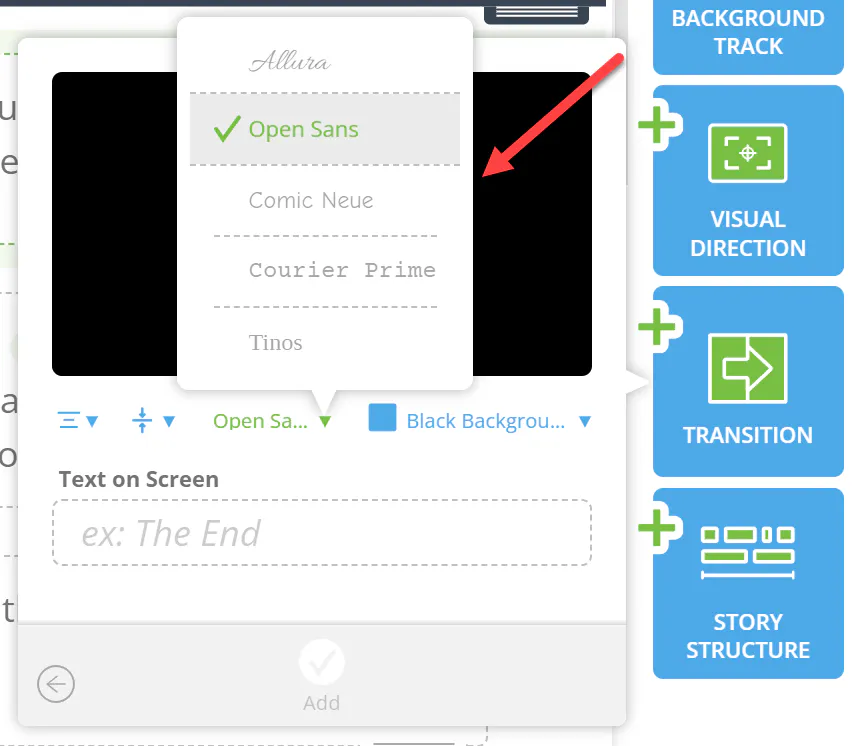
Select a font. Pick a font that complements the tone and style of your story.
Choose a background. Keep things simple with a solid black or white background, use an image from the previous or next Story Stream item, or create a custom image using Visual Direction.
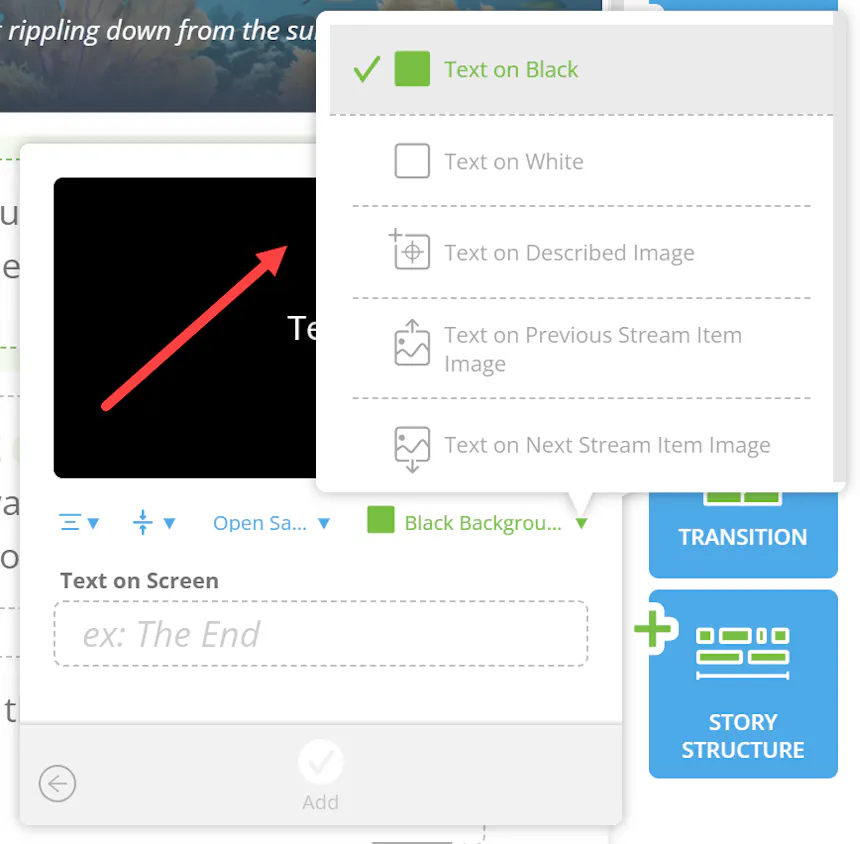
These options let you create anything from a simple time marker to a dramatic text card featuring a custom visual.
Need to make adjustments after adding a text card? Click the Text on Screen item in your Story Stream to update the wording or change its font, alignment, position, and background settings.
To replace the background image, click the three-dot menu on the right side of the Text on Screen item and select Change Image.
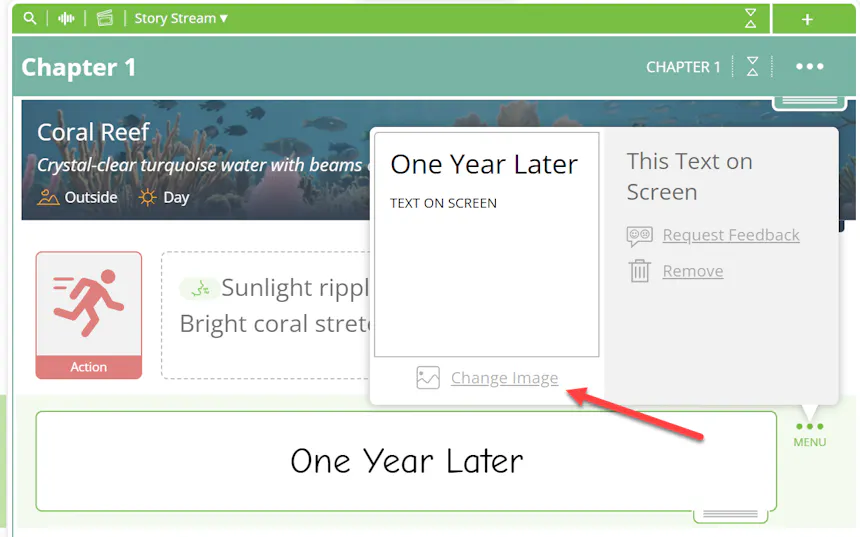
If you want a specific image, use Visual Direction to describe what you'd like to see. You can also tag characters, locations, or props in your description to help generate an image that fits your story.
This gives you more control over the visuals accompanying your text, helping each card feel connected to the chapter around it.
Export a perfectly formatted traditional script.
Text on Screen offers a simple way to add context, emphasize important moments, and shape the visual experience of your story. Experiment with different fonts, placements, and backgrounds to find what works best for your project.
From quick time jumps to custom text cards, the possibilities are yours to explore.
We can’t wait to see what you create with Text on Screen in SoCreate!