Music shapes tone, rhythm, and emotional impact. In addition to AI-generated ambient sounds and voice effects, SoCreate allows you to add custom music descriptions that bring cinematic energy to your story.
With only a brief description, SoCreate Storyteller can generate background music that matches your vision.
How to add music:
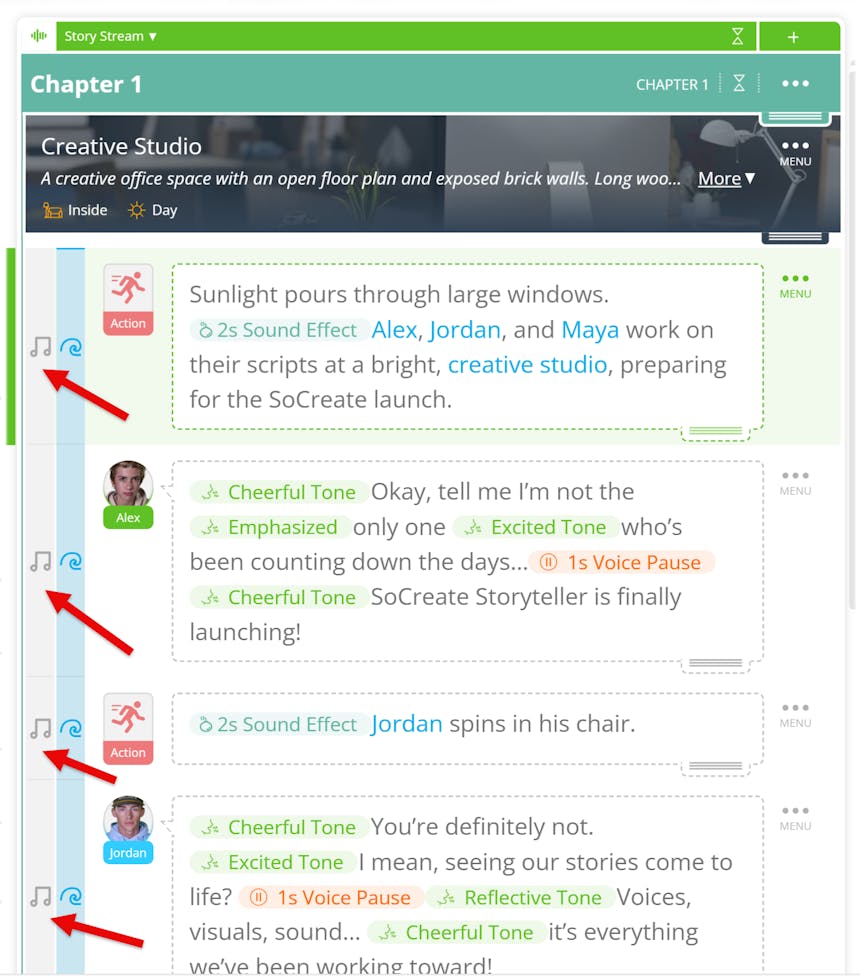
1. In SoCreate Writer, click the sound button in the top-left corner. Two icons will appear on each story item: a music note and a wave icon.

2. Select the music note where you want the music to start.
3. Describe the style of music you want.
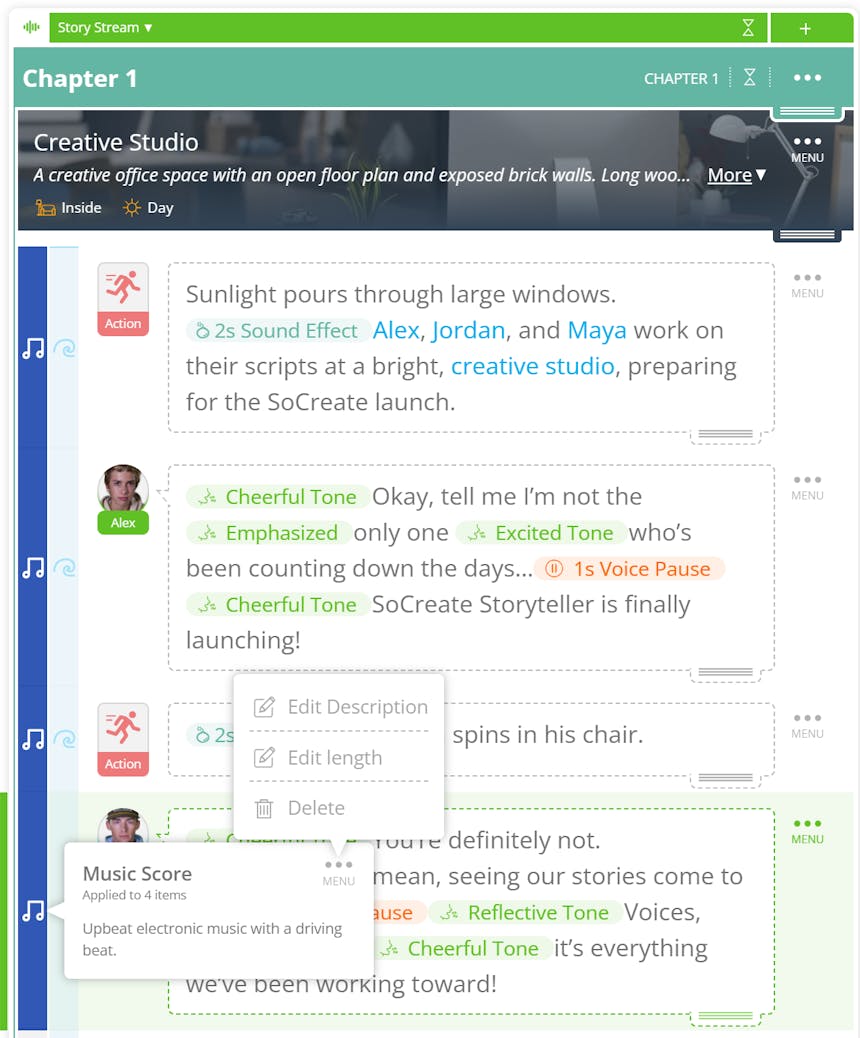
Example: “Upbeat electronic music with a driving beat.”
4. Choose how long the music should play, anywhere from 10 seconds up to five minutes.
Optional enhancements:
Lyrics: Click the blue button to add custom lyrics in a drop-down text field.
Volume: Select low, medium, or loud. (Medium is the default.)
5. Click Add to save your music.
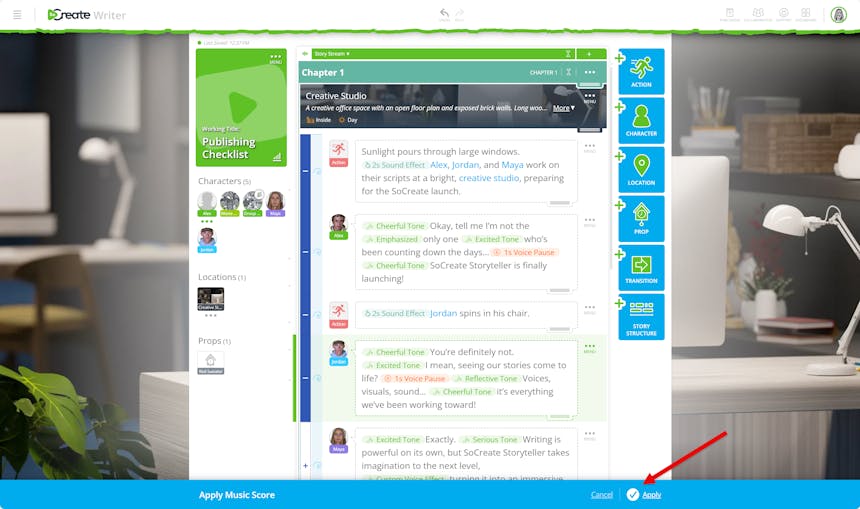
Just like ambient sounds, music can span multiple story items:
Use the plus (+) icon to include additional moments.

If you hold Shift and press the plus (+) icon, all items between your first and last selections will be included.
To remove items, use the minus (-) icon.
Click Apply to finalize.
To make changes later:
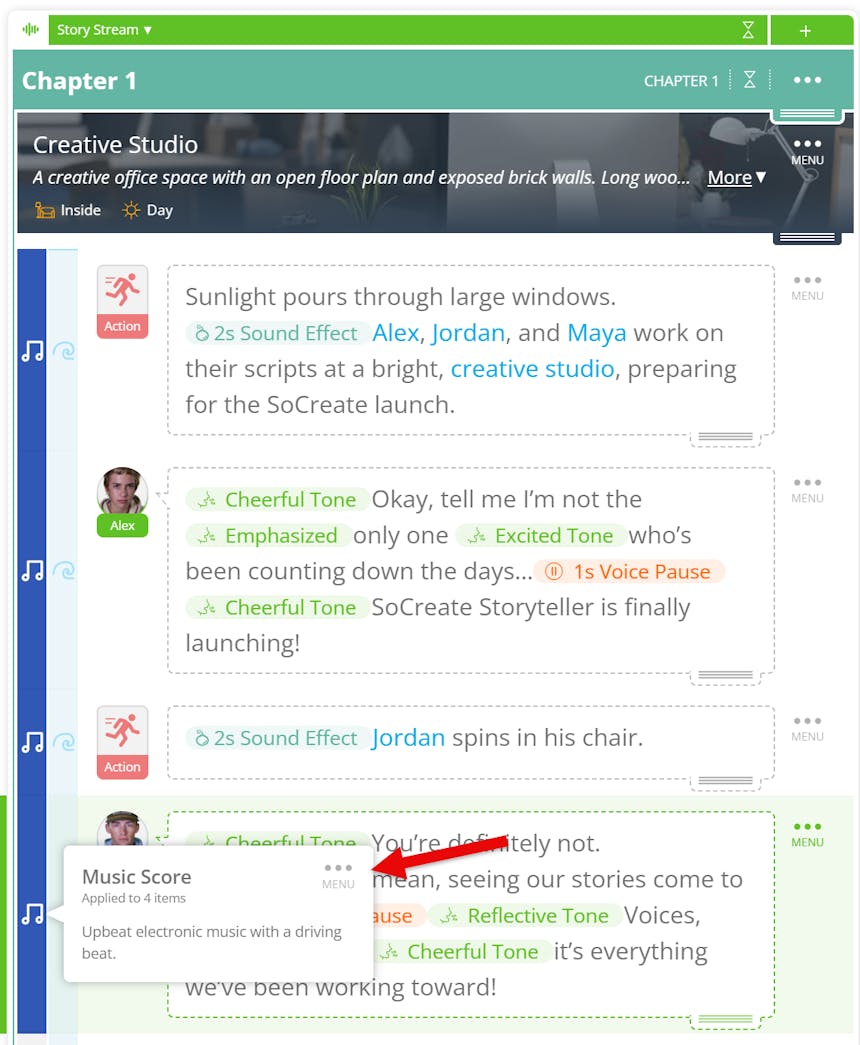
Click the purple-highlighted music icon.
Open the three-dot menu to edit the description, adjust the length, or delete the music track.
Open SoCreate Writer and layer in music to shape emotion, pacing, and atmosphere!